






How to connect Trakt in Stremize App
Trakt Connection Guide
Trakt allows Stremize to sync your watch progress, watch history, and watchlist across multiple devices.
Once connected, your viewing activity will stay synchronized between Stremize and your Trakt account.
This guide explains how to connect your Trakt account to Stremize step by step.
Before You Start
- You must have a Trakt account.
- If you don't have one, you can create an account for free at https://trakt.tv/.
- Trakt can be authorized using the Stremize Web Dashboard or directly from the Stremize mobile app.
- For easier setup, Stremize recommends connecting Trakt from the web dashboard.
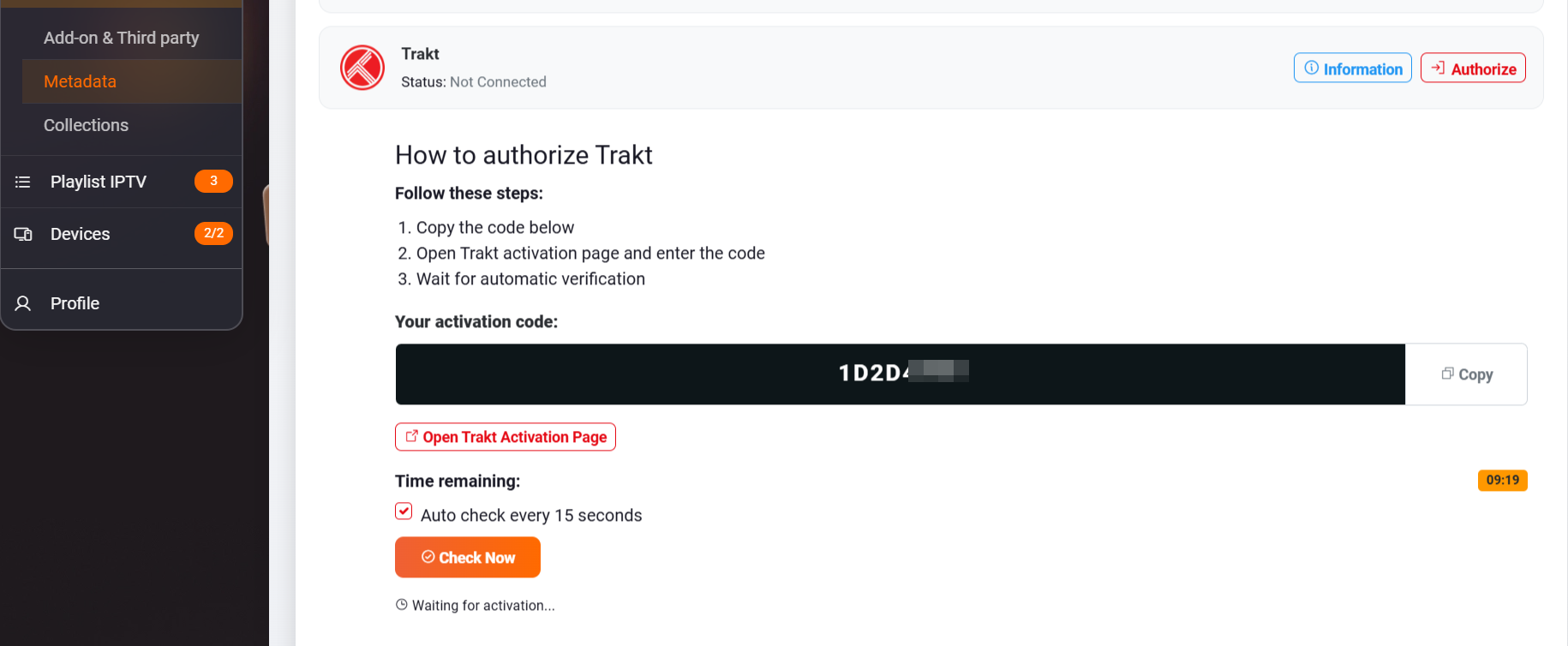
Step 1. Copy your activation code from Stremize App
Open the Metadata section in the Stremize Web Dashboard or the Stremize mobile app.
Copy your activation code
Step 2. Open Trakt Authorization
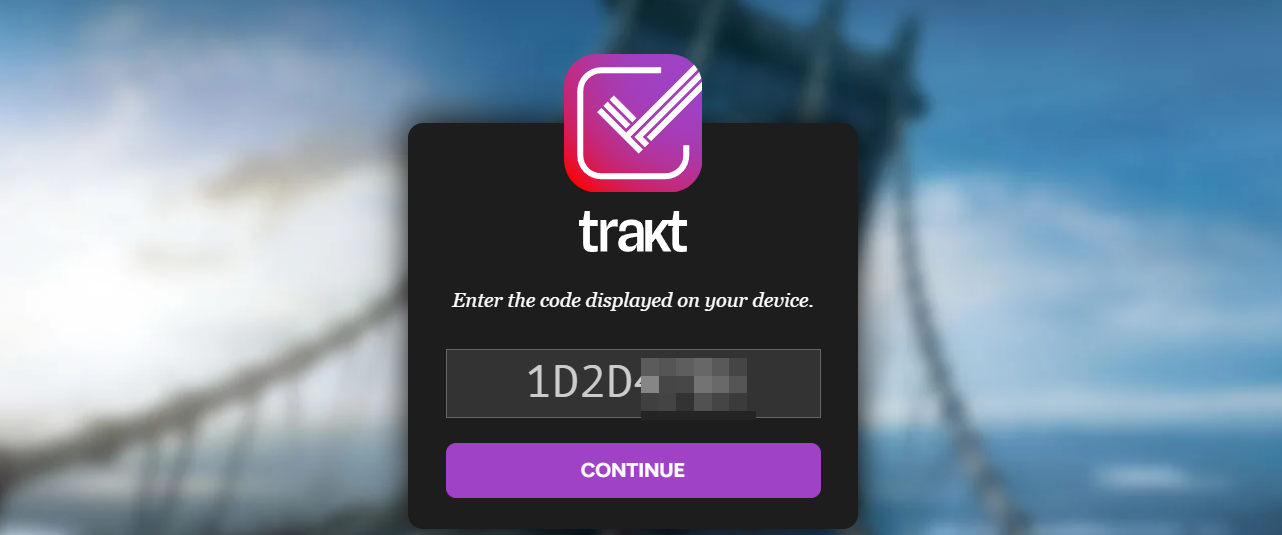
Sign in to your Trakt account and approve the authorization request from Stremize by paste your activation code
Step 3. Approve Stremize Access
After signing in, Trakt will ask you to confirm that you want to allow Stremize to access your account.
Click Allow to continue.
Step 4. Confirm the Connection
Once authorization is complete, your Trakt account will appear as connected inside Stremize.
Your watch progress, history, and watchlist will now sync automatically.
What Trakt Syncs
- Watch progress
- Watch history
- Watchlist
- Collection
This allows you to continue watching your content across different devices without losing your progress.
Common Issues
Authorization failed
Try logging out and reconnecting your Trakt account from the Stremize dashboard.
Progress not syncing
Make sure your Trakt account is still connected and that the content you are watching supports metadata matching.
Next Step
After connecting Trakt, your watch history and progress will automatically sync between devices whenever you watch content in Stremize.