








How to connect Orion in Stremize App
Orion Connection Guide
Orion is a powerful source indexing service that helps Stremize retrieve more streaming sources for movies and TV shows. Once connected, Stremize can use Orion together with supported community add-ons to discover additional high-quality streams.
This guide explains how to connect your Orion account to Stremize step by step.
Before You Start
- You must have an Orion account.
- Your account should be active to access Orion API features.
- Debrid services can be authorized using the Stremize Web Dashboard or directly from the Stremize mobile app.
- For easier setup, Stremize recommends configuring Debrid services on the web dashboard.
Step 1. Sign in to Orion
Open the Orion panel and sign in to your account.
Step 2. Copy Your Orion API Key
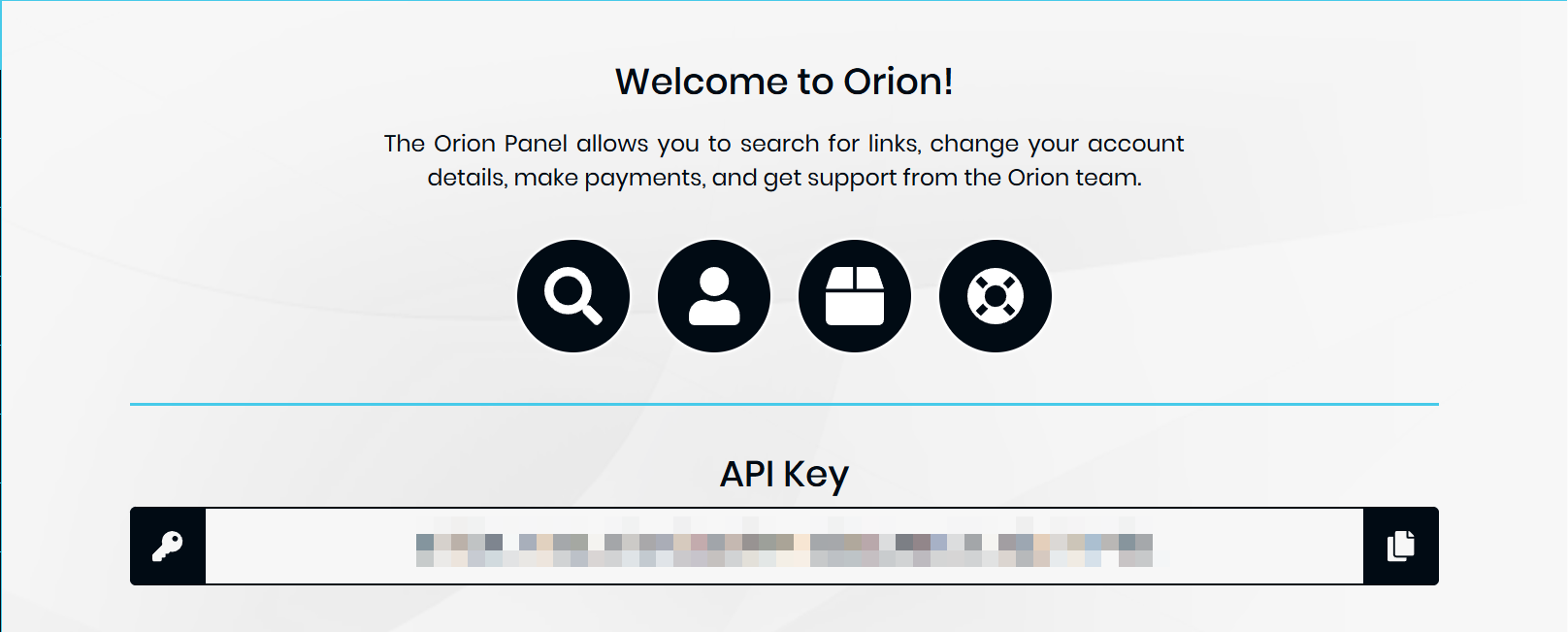
After signing in, open your Orion dashboard and locate your API Key.
Copy the API key provided in your account panel.
Step 3. Authorize Orion in Stremize
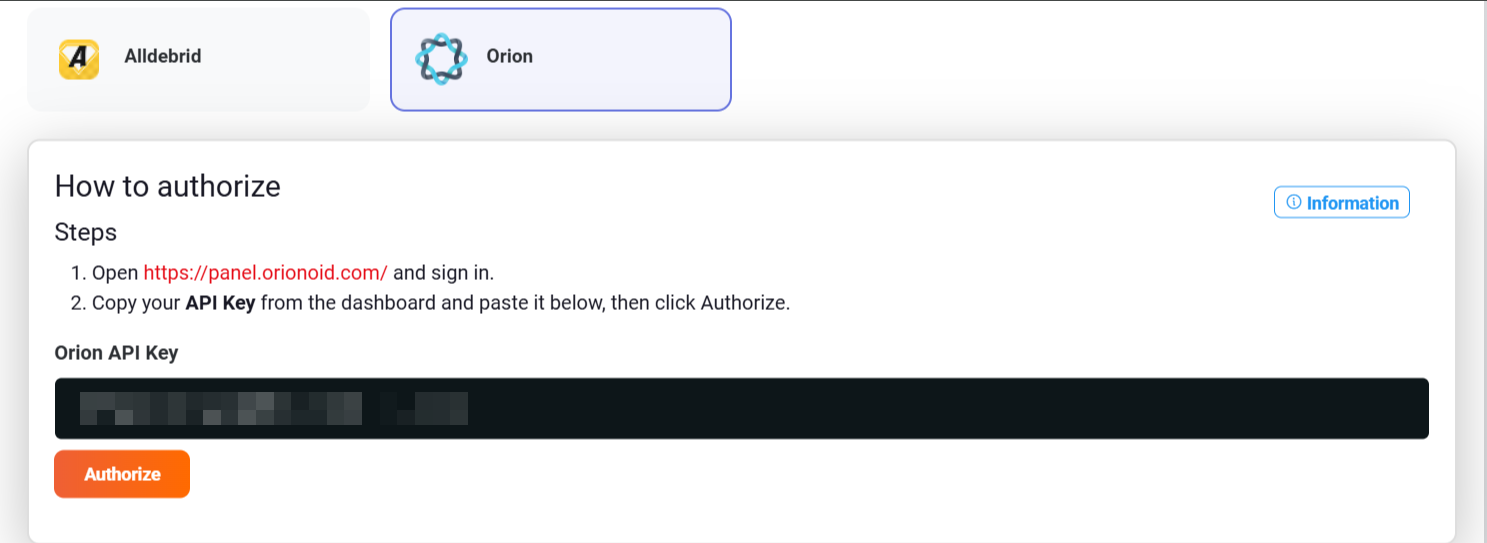
Open the Add-ons section in the Stremize Web Dashboard or in the Stremize mobile app.
Paste your Orion API Key into the authorization field and click Authorize.
Step 4. Confirm the Connection
Once authorization is successful, Orion will appear in your connected services list.
Stremize can now use Orion to retrieve additional streaming sources together with supported add-ons.
Common Issues
Invalid API Key
Make sure the API key is copied correctly from the Orion dashboard without extra spaces.
Account not active
Your Orion account must be active to use the API.
No additional streams found
Orion works together with supported add-ons. If no new sources appear, make sure at least one compatible add-on is installed in Stremize.
Next Step
After connecting Orion, open the Discover section in the Stremize app and search for a movie or TV show.
Stremize will automatically retrieve additional streaming sources using Orion together with your configured add-ons.